How to Use Photon for Solana Trading: Complete Beginner's Guide (2026)
A step-by-step guide to Photon, one of Solana's fastest web-based trading platforms. Learn how to set up, buy and sell tokens, use limit orders, configure sniping, and optimize your settings.
MadeOnSol·· 27 min read
Disclosure: This article contains affiliate links. If you sign up through them, MadeOnSol may earn a commission at no extra cost to you. This never affects our rankings, ratings, or reviews.
Tools mentioned
Compare features and read reviews.
Live health scores, average ratings, and direct links on MadeOnSol.
Photon's settings directly affect your execution speed, cost, and success rate. Getting them right matters more than you might think.
Trading Presets (S1/S2/S3)
Photon lets you save three preset configurations that you can switch between instantly:
S1 (Normal): For standard trades where speed is not critical. Lower priority fees, moderate slippage.
S2 (Fast): For competitive situations. Higher fees, tighter slippage.
S3 (Maximum Speed): For sniping and high-urgency trades. Maximum priority fees and Jito bribes, wider slippage tolerance.
Each preset stores its own values for slippage, priority fee, and Jito bribe. Switching between them is one click, so you can go from casual browsing mode to snipe mode instantly.
Slippage Settings
Slippage is the maximum price difference you accept between when you submit a trade and when it executes. On fast-moving Solana tokens, prices can shift in the fraction of a second between your click and block confirmation.
1-5% slippage: For established tokens with deep liquidity (SOL, JUP, BONK). Trades almost always execute.
5-15% slippage: For mid-cap tokens with moderate liquidity. Necessary for most memecoin trades.
15-30% slippage: For micro-cap tokens, new launches, and sniping. Higher slippage means you might overpay, but your trade actually goes through.
30%+: Only for extremely urgent sniping situations. You are accepting a potentially bad fill price in exchange for guaranteed execution.
Setting slippage too low on volatile tokens means your transaction fails (reverts), and you miss the trade entirely. Setting it too high means you could end up paying significantly more than the displayed price. Find the balance based on the specific token's volatility and liquidity.
Priority Fees and Jito Tips
Solana transactions include a priority fee that determines your position in the validator's transaction queue. Photon also supports Jito bundles — a tipping system that goes directly to block builders for preferential inclusion.
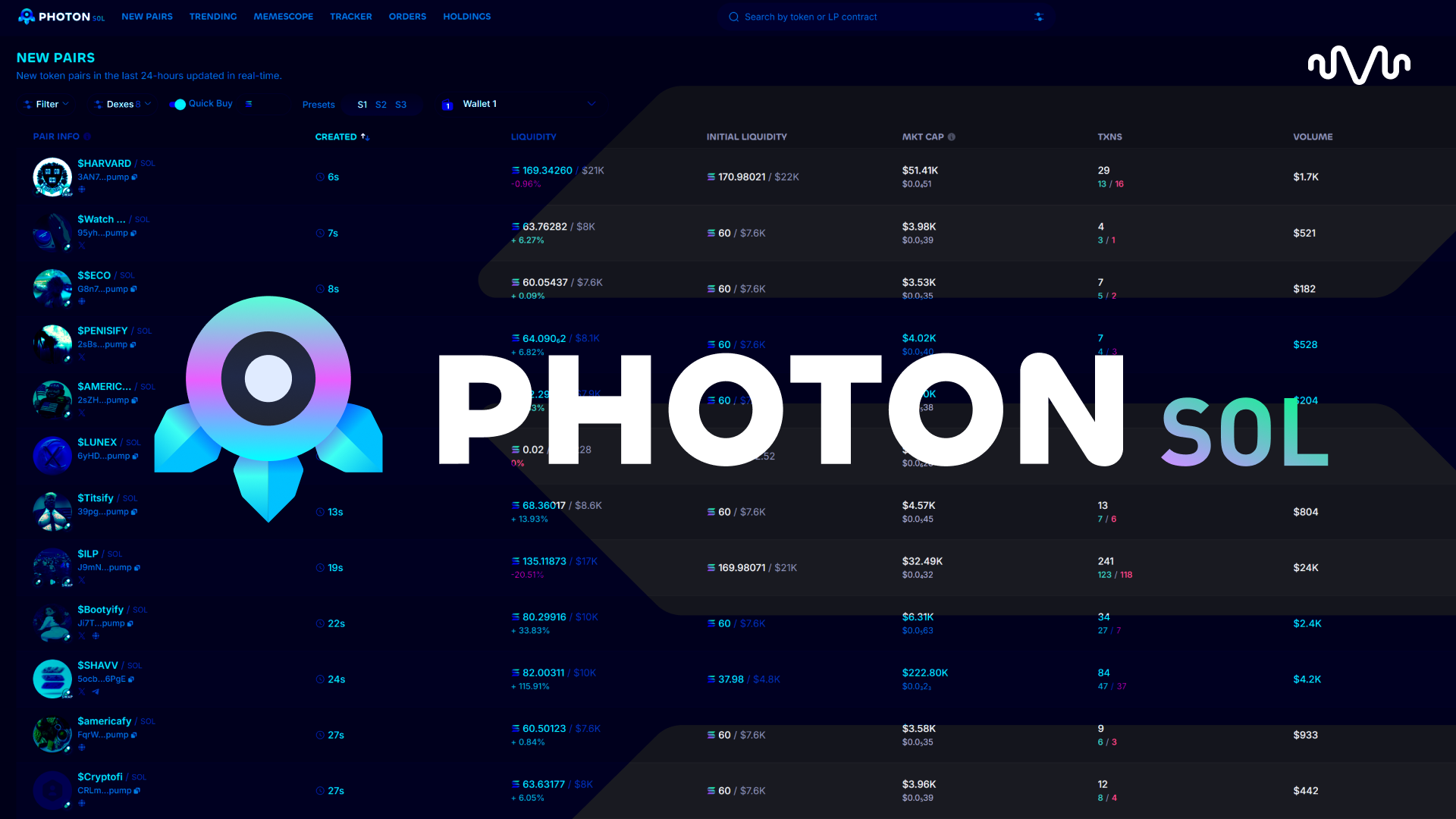
Photon is one of the most popular web-based trading terminals on Solana, used by over 1.3 million traders who have pushed more than $40 billion in volume through the platform. It aggregates pairs from Raydium, Pump.fun, and other Solana DEXs into a single interface built for speed — sub-300ms execution, one-click buys, built-in MEV protection, and a set of tools that let you trade tokens without ever opening a Telegram bot.
Whether you are buying your first memecoin or sniping migrations, this guide walks through everything Photon offers and how to actually use it.
What Is Photon
Photon is a browser-based trading terminal for Solana tokens. Think of it as a Bloomberg terminal for on-chain trading — charts, token data, wallet tracking, and execution all in one window. Unlike Telegram-based bots like Trojan, Photon gives you a full visual interface with TradingView charts, real-time token streams, holder analytics, and limit order functionality.
The platform supports buying and selling any SPL token on Solana, with a focus on newly launched tokens and memecoins. It pulls liquidity from Raydium, Pump.funbonding curves, Meteora, and other Solana AMMs, routing your trades for the best execution available.
Photon's main advantage over competitors is speed combined with a visual interface. Telegram bots are fast but blind — you are trading based on text messages. Chart platforms like Birdeye and DexScreener have great analytics but limited execution tools. Photon sits in the middle, giving you both.
Getting Started
Creating Your Wallet
Photon generates a built-in wallet when you first visit the platform. This is intentional — having an embedded wallet eliminates the latency of external wallet confirmations (the popup where Phantom asks you to approve every trade). When milliseconds matter, that popup is a deal-breaker.
Photon automatically generates a new Solana wallet for you
Important: Immediately export and save your private key. Go to the wallet section and back up your key somewhere safe and offline. If you lose access to this key, your funds are gone.
You can also import an existing wallet if you prefer, but most traders use the Photon-generated wallet for speed. Keep your main holdings in a separate wallet like Phantom and only fund your Photon wallet with what you are actively trading.
Funding Your Wallet
Once your wallet is created, you need SOL to trade:
Direct transfer: Copy your Photon wallet address and send SOL from Phantom, Solflare, or any other wallet. This is the most common method.
Moonpay: Photon has a built-in Moonpay integration if you want to buy SOL directly with a credit card or bank transfer.
From another Photon wallet: If you are using the multi-wallet feature, you can split SOL between wallets from the Deposit tab.
Start with a small amount — 0.5 to 2 SOL is enough to learn the platform. You need SOL both for buying tokens and for paying Solana network fees (which are fractions of a cent per transaction).
Interface Overview
Photon's interface packs a lot into one screen. Here is what you are looking at:
Top Bar
Search bar for pasting token contract addresses (mint addresses) or searching by token name
Quick navigation to New Pairs, Trending, and your Holdings
Wallet balance display showing your SOL and token holdings
Settings gear icon for configuring presets
Left Panel — Token Discovery
New Pairs: Live stream of newly created tokens on Solana. Tokens appear here within seconds of deployment.
Trending: Tokens sorted by volume, price change, or transaction count over various time periods.
Memescope: Three customizable columns that filter new tokens in real-time based on criteria you define (market caprange, volume, liquidity, holder count, etc.). This is Photon's signature discovery tool.
Center Panel — Chart and Token Data
TradingView chart with full candlestick support, drawing tools, and technical indicators
Copy the token's mint address (contract address). You can find this on DexScreener, Birdeye, Twitter, or any Solana explorer.
Paste it into Photon's search bar at the top of the screen
The token page loads instantly with the chart, liquidity info, holder data, and trading panel
Click one of the Quick Buy buttons or enter a custom SOL amount
Your trade executes — typically in under 300 milliseconds
Quick Buy Buttons
Photon displays preset buy buttons so you can buy with a single click. The default amounts are typically 0.1, 0.5, 1, and 5 SOL, but you can customize these in your settings.
Using Quick Buy is the standard workflow for most Photon traders:
See a token you like in New Pairs or Memescope
Click it to open the token page
Glance at the chart, liquidity, and holder data
Hit your preferred Quick Buy amount
The trade submits immediately. No wallet popup, no confirmation screen. This is why Photon is popular for fast-moving tokens — by the time a Phantom popup loads on another platform, your Photon trade is already confirmed.
Custom Amounts
If the presets do not match what you want to buy, type a custom SOL amount in the buy field. This is useful when you want to size a position precisely — for example, putting exactly 0.37 SOL into a token to reach a specific portfolio allocation.
Understanding the Token Info Panel
Before you buy anything, check the token information panel. Photon surfaces critical data:
Market Cap: Current fully diluted market cap. For Pump.fun tokens still on the bonding curve, this shows the bonding curve market cap.
Liquidity: Total liquidity across all pools. Low liquidity (under $5K) means high slippage and potential difficulty selling.
Holders: Number of unique wallets holding the token. Very low holder counts on older tokens can signal a dead project.
Top Holders %: How concentrated ownership is. If the top 10 holders own 80%+ of supply, one wallet dumping can crash the price.
Mint Authority: Should be revoked. If it is still active, the team can mint unlimited new tokens, diluting your holdings to zero.
LP Status: Whether liquidity pool tokens are burned (permanent liquidity) or unlocked (team can pull liquidity — a rug pull risk).
Use RugCheck alongside Photon for a deeper safety analysis. Photon gives you the basics at a glance, but RugCheck runs a full audit.
Selling Tokens
Percentage Sells
Selling on Photon uses percentage-based Quick Sell buttons. The defaults are 25%, 50%, 75%, and 100% of your holdings for that token.
To sell:
Navigate to the token page (click the token in your Holdings, or paste the address)
Click one of the sell percentage buttons on the right panel
The trade executes instantly
Most traders use a staged sell strategy:
Sell 25% at 2x to recover half your initial investment
Sell another 25% at 3-5x for profit
Let the remaining 50% ride with a stop loss set
Custom Sell Amounts
You can enter a specific token amount or SOL value to sell instead of using percentages. This is useful when you want to sell an exact dollar amount — for example, selling exactly $100 worth of a token regardless of what percentage of your bag that represents.
Take Profit Strategies
The most common approaches Photon traders use:
The 2x Recovery: Buy a token, set a Take Profit limit order at 2x your entry. When it hits, 50% of your position sells automatically, returning your initial investment. The rest is "house money" that you let ride.
The Ladder: Set multiple Take Profit orders at increasing market cap levels. For example:
25% sell at 2x
25% sell at 5x
25% sell at 10x
Keep 25% for a potential moonshot
The Quick Flip: For high-volume tokens with fast price action, buy and sell within minutes. Watch the live transaction feed for buying momentum, enter on a dip, and sell at the next push. This only works with very liquid tokens.
Limit Orders and Stop Losses
Photon's limit order system is one of its strongest features, with execution speeds of approximately 2.5 milliseconds once a trigger condition is met.
Types of Limit Orders
Buy Dip: Automatically buys a token when the market cap drops to your target. Useful for entering a position at a lower price without watching the chart constantly.
Stop Loss: Automatically sells a percentage of your holdings when the market cap drops to your specified level. This protects you from catastrophic losses.
Take Profit: Automatically sells a percentage of your holdings when the market cap rises to your target. Locks in profits without requiring you to sit at the screen.
How to Set Limit Orders
Open the token page in Photon
Navigate to the limit orders section in the trading panel
Select the order type: Buy Dip, Stop Loss, or Take Profit
Set your target using one of three methods:
Percentage change: "Buy if MC drops 30%" or "Sell if MC rises 200%"
Exact market cap: "Buy at $50K MC" or "Sell at $500K MC"
Visual drag on chart: Click and drag a target line directly on the TradingView chart. This is the most intuitive method — you see support and resistance levels and place your order right on them.
Set the amount (SOL to spend for Buy Dip, or percentage of holdings for Stop Loss/Take Profit)
Confirm the order
Practical Examples
Scenario: You bought a memecoin at $80K market cap.
Set up two limit orders:
Stop Loss: Sell 100% if MC drops to $40K (50% loss limit). This means if the token dumps, you automatically sell and preserve half your investment.
Take Profit: Sell 50% if MC reaches $400K (5x). This locks in 2.5x your initial investment while keeping half your bag for more upside.
If the Stop Loss triggers, the Take Profit order auto-cancels (and vice versa). Photon handles this automatically when both orders together would sell 100% of your tokens.
Scenario: You want to enter a token on a dip.
A token is trading at $200K MC and you think it will pull back to $120K before bouncing:
Set a Buy Dip order at $120K MC for 1 SOL
Adjust your priority fee and Jito bribe to ensure fast execution when the trigger hits
Walk away. If it dips, you buy automatically.
Priority Fee Settings for Limit Orders
Limit orders compete with other traders and bots for block inclusion. Two settings matter:
Priority Fee: The Solana network fee that determines your transaction's priority in the validator queue. Higher = faster inclusion.
Jito Bribe: An additional tip paid to Jito validators specifically. This is critical during high-congestion moments when many people are trying to buy or sell the same token simultaneously.
If your priority fee and bribe are too low, your limit order might trigger but fail to land in a block quickly enough — meaning the price moves past your target before your trade executes. For limit orders on volatile tokens, set these higher than your defaults.
Sniping New Tokens
Sniping means buying a token at the earliest possible moment — either right when it launches on Pump.fun or when it migrates from the Pump.fun bonding curve to PumpSwap, pump.fun's own AMM.
Pump.fun Snipe Setup
Photon's New Pairs feed shows Pump.fun tokens within seconds of deployment. To snipe effectively:
Open the Memescope view and configure your filters:
Set a minimum market cap (e.g., $5K) to avoid tokens that launched seconds ago with no buyers
Filter for "Mint Authority Revoked" and "LP Burned" to skip obvious scams
Set minimum holder count or volume thresholds based on your risk tolerance
When a token matching your filters appears, click it to open the token page
Hit your Quick Buy button immediately
Photon's embedded wallet means no popup delay — your trade goes through in under 300ms
Pro tip: Configure your S1/S2/S3 presets (explained in the Settings section below) with different slippage and fee levels. Use a high-fee preset (S3) for sniping where speed is critical, and a lower-fee preset (S1) for casual buys where a few extra seconds do not matter.
Migration Sniping
Migration sniping targets tokens that are "graduating" from Pump.fun's bonding curve to a PumpSwap liquidity pool (pump.fun's own AMM — before March 2025 this was Raydium). This is a high-risk, high-reward strategy:
When a Pump.fun token reaches 100% on its bonding curve, its liquidity migrates to PumpSwap
The first trades on PumpSwap after migration often see rapid price increases as broader DEX access brings new buyers
Photon can detect these migrations and execute buys quickly
To set up migration sniping:
Monitor tokens approaching 100% on the bonding curve (Photon shows this data in the token panel)
Prepare your buy amount and have a high-speed preset selected
When migration occurs, execute your buy as fast as possible
Set an immediate Stop Loss in case the post-migration price action goes against you — many migrations dump rather than pump
Migration sniping is competitive. You are racing against bots that monitor the blockchain directly. Even with Photon's speed, you will not always get in first. Size your positions conservatively and accept that some snipes will be instantly underwater.
Memescope Configuration for Sniping
Memescope is your primary discovery tool for sniping. It shows three customizable columns, each with their own filters:
Column 1 — "Fresh launches": Filter for tokens under 5 minutes old, market cap $3K-$30K, at least 10 holders
Column 2 — "Gaining momentum": Filter for tokens 5-30 minutes old, market cap $30K-$200K, volume increasing
These are examples — adjust based on your strategy. The key is having Memescope configured before you need it. Do not waste time setting filters while a token is pumping.
0.001 SOL
Sniping
0.005-0.01 SOL
0.005-0.01 SOL
Extreme urgency
0.01+ SOL
0.01+ SOL
These are rough guidelines. During network congestion (often during major token launches), you may need to increase fees significantly. Monitor your transaction success rate — if trades are failing, bump up the fees.
Smart-MEV Protection
Photon offers Smart-MEV modes that help protect your trades from sandwich attacks (where bots front-run and back-run your transaction to extract value):
Fast mode: Prioritizes execution speed with threshold-based Jito bribes
Secure mode: Routes through partner pathways that reduce MEV exposure at the cost of slightly slower execution
For most trading, Fast mode is fine. Switch to Secure mode if you are making large trades (5+ SOL) where sandwich attacks could cost you meaningful money.
Auto-Buy Settings
Photon supports auto-buy triggers based on market cap changes. You can configure each preset to automatically buy when a token's market cap changes by a specified percentage. This is an advanced feature — use it carefully. Auto-buying based on momentum can be profitable, but it can also cause you to buy into pump-and-dumps at the top.
Quick Buy and Quick Sell Amounts
Customize your Quick Buy buttons with amounts that match your trading style:
Conservative: 0.05, 0.1, 0.25, 0.5 SOL
Standard: 0.1, 0.5, 1, 2 SOL
Aggressive: 0.5, 1, 3, 5 SOL
Set Quick Sell percentages to match your take-profit strategy. The defaults of 25/50/75/100% work well for most traders.
Advanced Features
Multi-Wallet Trading
Photon supports up to five active wallets simultaneously. This is useful for several strategies:
Why use multiple wallets:
Separate sniping funds from main trading funds
Distribute buys across wallets to avoid detection on holder analysis tools
Risk management — if one wallet gets drained by a malicious token approval, the others are unaffected
Setting up multi-wallet:
Go to the Wallets page in Photon
Click "Generate Wallet" to create additional wallets (up to 5 total)
Use the Deposit tab to split SOL from your primary wallet into the new wallets — either evenly or in custom amounts
When trading, select which wallets to use from the dropdown on the trading panel
Important: When you Quick Buy with multiple wallets selected, the buy amount applies to each wallet individually. Buying 0.5 SOL with 3 wallets means 1.5 SOL total spent, not 0.5 SOL split three ways.
You can view all holdings across all wallets in the "My Holdings" section, which shows a consolidated portfolio view. Expand any token to see which specific wallets hold it, and select individual wallets when selling.
Unused wallets can be archived (and unarchived within 30 seconds) to keep your interface clean.
Wallet Tracker and X Tracker
Photon includes two tracking modules:
Wallet Tracker: Add wallet addresses of traders you want to follow. When those wallets make trades, you get notified. This is useful for:
Following known profitable traders
Watching developer wallets for insider activity
Monitoring whale wallets for accumulation or distribution signals
X Tracker: Monitors X (Twitter) posts for token mentions and contract addresses. When a tracked account posts about a token, you get a notification with a quick-buy option. This helps you react to influencer calls faster than manually scrolling your timeline.
Both trackers feed into Photon's notification system, so you can act on signals without leaving the platform.
Chart Integration
Photon embeds TradingView charts directly in the trading interface. You get:
Multiple timeframes (1m, 5m, 15m, 1h, 4h, 1D)
Candlestick, line, and area chart types
Drawing tools for trendlines, support/resistance levels, and Fibonacci retracements
Direct order placement by dragging target lines on the chart (for limit orders)
The chart-to-order workflow is one of Photon's standout features. Instead of calculating market cap targets manually, you draw a line on the chart where you want to buy or sell, and Photon creates the limit order with the corresponding market cap value.
This data helps you assess whether a token's price action is organic or manipulated. If the top 5 wallets hold 60% of supply and have been accumulating, the price is likely to dump when they sell. If holdings are distributed across hundreds of wallets with no single dominant holder, the token has more organic support.
Fees
Transaction Fee Breakdown
Every trade on Photon incurs three types of fees:
Photon platform fee: 1% of the trade amount, collected in SOL. This applies to both buys and sells.
Example buy: You spend 1 SOL. Photon takes 0.01 SOL (1%). The remaining 0.99 SOL buys tokens.
Example sell: You sell tokens worth 2 SOL. Photon takes 0.02 SOL (1%). You receive 1.98 SOL.
Solana network fee: Approximately 0.000005 SOL per transaction (negligible). Plus your configured priority fee and Jito bribe.
DEX fee: The underlying AMM (Raydium, Meteora, etc.) charges its own swap fee — typically 0.25-1% depending on the pool. This is the same fee you would pay trading directly on the DEX.
For a round trip (buy + sell), you are paying roughly 2% in Photon fees alone, plus DEX fees and priority fees. This means a token needs to increase approximately 3-5% for you to break even after all fees.
Jupiter is the cheapest option, but it lacks the trading terminal features (real-time token streams, one-click trading, limit orders, sniping tools) that make Photon valuable. You are paying the 1% for speed and convenience. Note that Photon, BullX, Axiom, and Trojan all now start from the same 1% base fee — Axiom and Trojan just discount it further through volume-based cashback tiers, so the effective rate you pay depends on how much you trade.
Photon vs BullX vs Axiom
All three are web-based Solana trading terminals competing for the same user base. Here is when to use each.
Photon
Best for: Speed-focused manual trading, chart-based limit orders, sniping via Memescope.
Strengths: Sub-300ms execution, visual limit order placement on charts, Memescope token discovery, mature platform with a large user base, Smart-MEV protection.
Weaknesses: 1% fee is on the higher side, no built-in copy trading automation, can be overwhelming for absolute beginners.
BullX
Best for: Traders who want a similar web terminal experience with additional features like pump vision and integrated trading competitions.
Strengths: Similar speed and interface quality, active community, Pump Vision for monitoring new launches, multi-chain support beyond Solana.
Weaknesses: 1% fee (same as Photon), newer platform with a slightly smaller track record.
Axiom
Best for: Traders who want a cleaner interface and are willing to grind volume for a fee discount.
Strengths: Same 1% base fee as the rest of the field but with a seven-tier cashback ladder that nets down to 0.75% for high-volume traders, streamlined interface, fast execution, strong focus on Solana memecoin trading.
Weaknesses: Newer entrant with less established infrastructure, fewer advanced features compared to Photon, and the cashback tiers require sustained volume — Axiom does not publish the thresholds.
The verdict: If you value execution speed and visual trading tools (especially chart-based limit orders), Photon is the strongest choice. If fees are your primary concern, all four platforms now start from the same 1% — Axiom's and Trojan's cashback tiers can get you below that, but only once you have enough volume to climb them. If you want the newest features and an active community, check out BullX. Many serious traders maintain accounts on all three and use whichever is performing best at any given time.
Tips and Best Practices
Position Sizing
Never put more than 5-10% of your trading capital into a single memecoin trade. The win rate on new Solana tokens is low — most go to zero. Your goal is to have your winners large enough to cover many small losses.
A realistic approach:
Trade with 0.1-0.5 SOL per position on unproven tokens
Scale up to 1-3 SOL only on tokens showing strong organic momentum (rising holders, consistent volume, community engagement)
Keep at least 50% of your total funds in SOL as dry powder for opportunities
Always Set Stop Losses
The single biggest mistake new traders make on Photon is buying tokens and then forgetting about them. Memecoin prices can drop 90% in minutes. Always set a Stop Loss immediately after buying:
For sniped tokens (high risk): Stop Loss at -50% from entry
For trending tokens (moderate risk): Stop Loss at -30% from entry
For established tokens (lower risk): Stop Loss at -20% from entry
Yes, you will get stopped out of some trades that eventually recover. That is fine. The alternative — holding bags down 95% — is significantly worse.
Use the Transaction Feed
The live transaction feed at the bottom of each token page is underrated. Watch for:
Clusters of large buys: Someone with alpha is accumulating. Could be a good sign.
Dev wallet selling: The developer is cashing out. Usually a very bad sign.
Wash trading patterns: Same wallets buying and selling repeatedly to inflate volume. Avoid.
Decreasing buy size over time: Early interest is fading. Consider taking profit.
Are top holders concentrated? (Below 30% for top 10 is ideal)
Is there actual volume, not just a few wallets? (Check holder count vs. transaction count)
Does the token have a real community or is it just a ticker? (Check Twitter/Telegram links)
Run it through RugCheck for an automated safety score
Preset Discipline
Set up your three presets deliberately and do not change them during active trading:
S1: Your default. Moderate fees, standard slippage. Use for 80% of trades.
S2: Your competitive preset. Higher fees for when you need to beat other buyers to a trade.
S3: Your snipe preset. Maximum speed settings. Only use when sniping new launches or migrations.
Switching presets under pressure leads to mistakes — accidentally leaving S3 (high fees) on for normal trades, or forgetting to switch from S1 when you need speed.
Withdraw Profits Regularly
After a winning trade, send a portion of the profit back to your main wallet (Phantom, etc.) immediately. Photon wallets are hot wallets connected to the internet — keeping large amounts in them is unnecessary risk. Keep only your active trading capital in Photon.
Common Issues and Troubleshooting
Transaction Failing (Reverted)
Cause: Slippage too low for the token's volatility, or priority fee too low during congestion.
Fix: Increase slippage by 5-10% and increase your priority fee. If it still fails, the token might have a transfer tax or other on-chain mechanic that requires even higher slippage. Check the token contract for any built-in taxes.
Trade Executed but Token Does Not Show in Holdings
Cause: Minor UI delay or RPC lag.
Fix: Refresh the page. If the token still does not appear, check your wallet on a Solana explorer (Solscan or Solana FM) to verify the transaction landed. If the transaction is confirmed on-chain but Photon does not show it, clear your browser cache and reload.
Limit Order Not Triggering
Cause: The market cap hit your target, but your priority fee and Jito bribe were too low to land the transaction in time.
Fix: Increase the fee settings for your limit orders. For volatile tokens, set fees 2-3x higher than your defaults. Also check that the order is still active — expired orders will not trigger.
Slow Interface or Chart Not Loading
Cause: Browser performance issues. Photon is resource-intensive, especially with Memescope running three live feeds.
Fix: Close unnecessary tabs and browser extensions. Use Chrome or Brave for best performance. If Memescope is lagging, reduce the number of active filters or close one of the three columns.
Wallet Shows Zero Balance After Depositing SOL
Cause: The deposit transaction has not finalized yet, or you sent SOL to the wrong address.
Fix: Wait 30-60 seconds and refresh. Solana transactions usually confirm in under a second, but during congestion they can take longer. Double-check the recipient address matches your Photon wallet address exactly. If you sent to the wrong address, the funds are likely unrecoverable.
MEV / Sandwich Attack on a Trade
Cause: A bot detected your pending transaction and front-ran it, causing you to buy at a higher price.
Fix: Enable Smart-MEV Secure mode in your settings. This routes your trades through pathways that are harder for bots to detect. The tradeoff is slightly slower execution. For large trades (5+ SOL), always use Secure mode.
Quick Buy Button Not Responding
Cause: Insufficient SOL balance (including the reserve needed for network fees), or a UI glitch.
Fix: Ensure you have at least 0.01 SOL more than your Quick Buy amount to cover network fees. If the balance is sufficient, try refreshing the page.
Final Thoughts
Photon is built for traders who want speed and visual tools without sacrificing the on-chain execution that makes Solana trading unique. The 1% fee is a real cost, but for active memecoin traders, the time saved and trades caught because of sub-300ms execution more than pays for it.
Start with small amounts while you learn the interface. Master the preset system so you can switch between casual trading and sniping mode instantly. Set stop losses on every trade. And remember — no trading tool in the world will make a bad trade good. Photon gives you speed and information, but the decision of what to buy and when to sell is still yours.
If you're weighing Photon against other execution styles, our Axiom guide walks through its Smart Money wallet tracking and copy trading, and our Trojan guide covers the same buy/sell/snipe workflow entirely inside Telegram instead of a browser tab.
For more Solana trading tools and comparisons, explore the full MadeOnSol directory — we track 1,200+ tools across 32 categories to help you find the right tool for your trading style.
To see how Photon stacks up against Axiom, Padre, BullX, and the rest of the field, check our trading terminal comparison. For the other two major web terminals in depth, see our GMGN guide and Padre guide.