How to Read Solana Transactions: A Complete Walkthrough for Beginners
Learn to decode Solana transactions step by step. Understand signatures, instructions, token transfers, and how to use block explorers.
MadeOnSol·· 10 min read
Disclosure: This article contains affiliate links. If you sign up through them, MadeOnSol may earn a commission at no extra cost to you. This never affects our rankings, ratings, or reviews.
Building a product on Solana or Robinhood Chain data?
Skip the Geyser pipeline — embed KOL flow, deployer reputation, and the all-DEX firehose over REST, WebSocket, or webhooks. The Business tier (€400/mo) is the self-serve embed license at 500k calls/day — Enterprise adds white-label & redistribution.
Building a product on Solana or Robinhood Chain data?
MadeOnSol isn't an RPC or another generic token API — it's Solana & Robinhood Chain memecoin intelligence that's painful to build in-house, pulled from dual-region gRPC shred streams and our own Robinhood Chain node, pushed to your app as events land.
Signals you'd otherwise build
KOL & smart-money flow from 2,000+ labeled wallets, deployer reputation, coordination clusters, linked-wallet entity resolution, and an all-DEX firehose.
Embed it in your product
The Business tier (€400/mo, self-serve) licenses you to display MadeOnSol data inside your own product — 500k calls/day, 15 WS + 6 firehose connections. Enterprise above adds white-label & redistribution rights and custom endpoints.
Evaluate first, commit later
Test everything on a free ULTRA key — no commitment. If it fits, we scope volume or white-label pricing.
Every action on Solana — swapping tokens, minting an NFT, staking SOL, or sending a transfer — creates a transaction recorded permanently on the blockchain. Being able to read and understand these transactions is a fundamental skill for anyone using Solana, whether you're a trader verifying swaps, a developer debugging programs, or just curious about what's happening on-chain.
This guide walks you through reading Solana transactions from scratch, using real examples and practical explanations.
What Is a Solana Transaction?
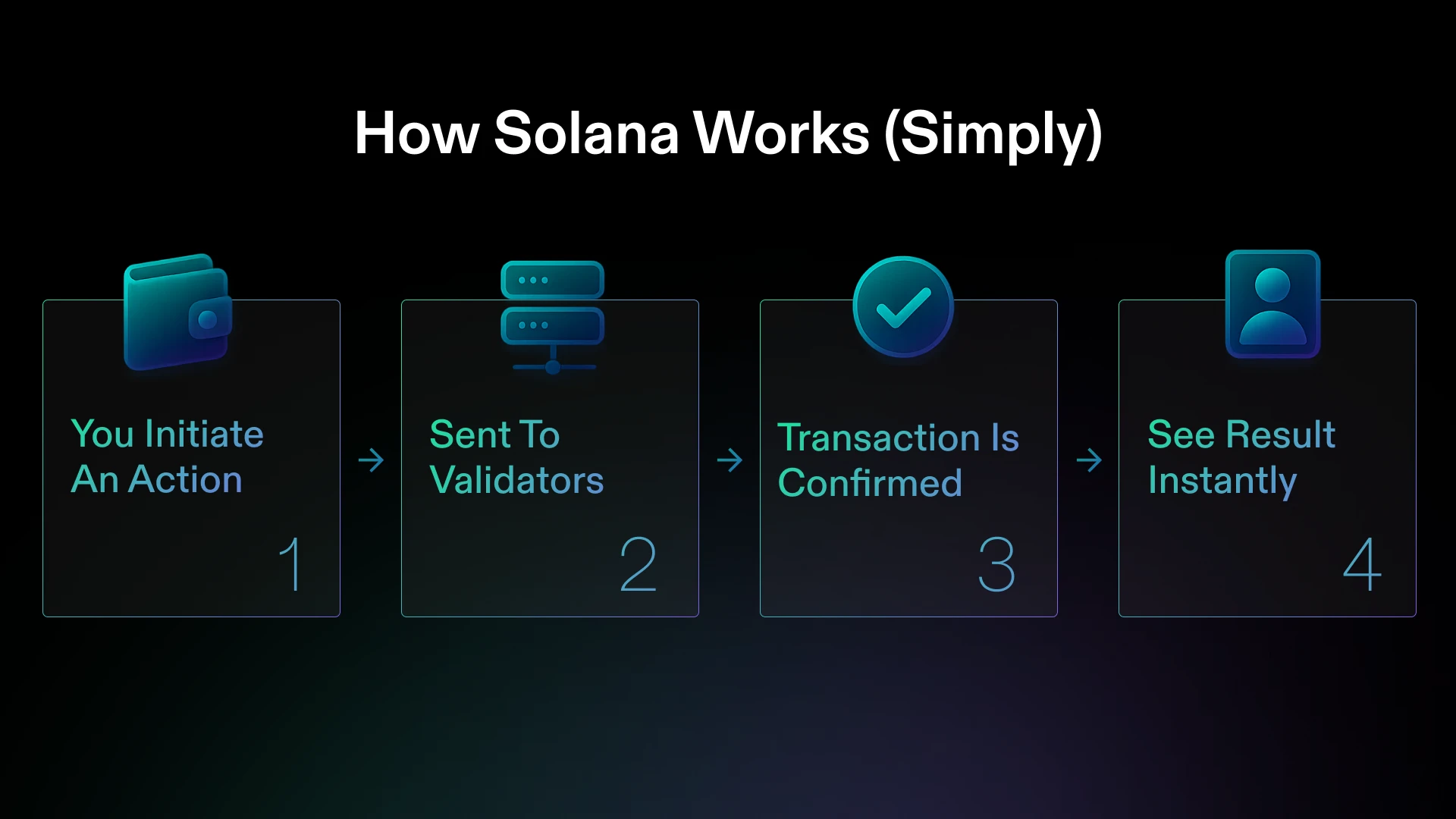
A Solana transaction is a signed message that tells the network to execute one or more instructions. Think of it as a signed request: "I want to do X, Y, and Z, and here's my signature proving I authorized it."
Every transaction contains:
Signatures: Cryptographic proofs from the wallets that authorized the transaction
Account keys: All the accounts (wallets, token accounts, programs) involved
Recent blockhash: A timestamp mechanism to prevent replay attacks
Finding a Transaction
To examine a transaction, you need its transaction signature (also called transaction hash or tx hash). This is a base-58 encoded string that looks like:
Solscan is the most popular Solana block explorer. It provides a clean interface with parsed transaction data, token information, and account details.
To view a transaction on Solscan:
Go to solscan.io
Paste the transaction signature in the search bar
The transaction detail page shows all the information broken down into sections
Solana Explorer
Solana Explorer is the official explorer maintained by Solana Labs. It shows more raw data than Solscan, which can be useful for developers but is less beginner-friendly.
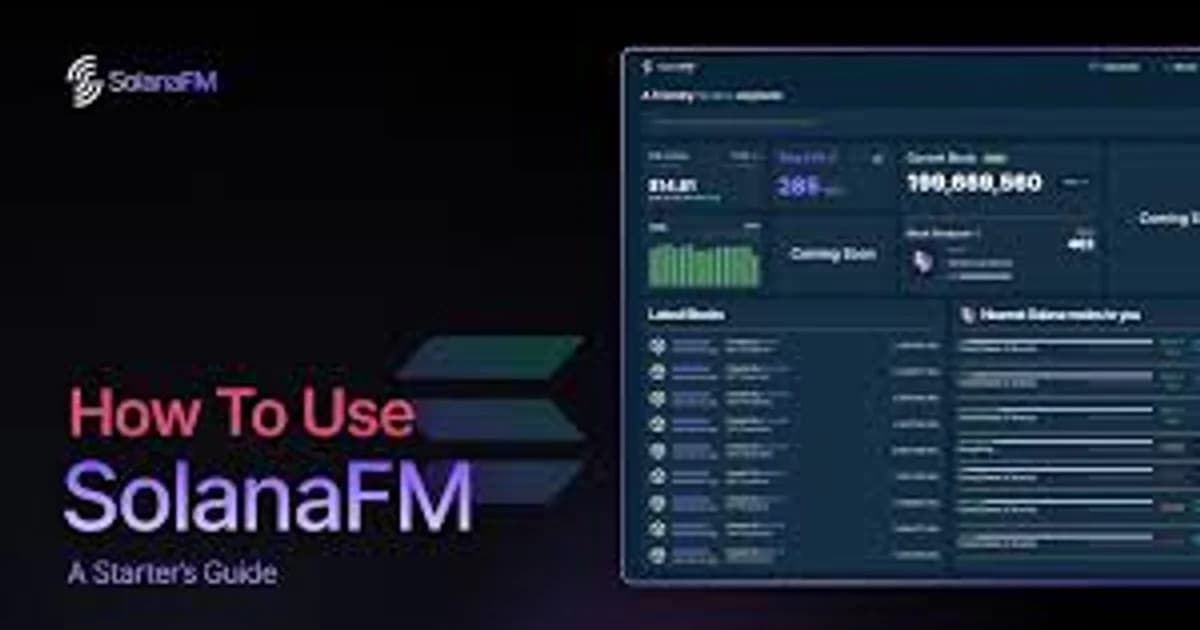
For this guide, we'll primarily reference Solscan's interface since it's more approachable for beginners. A third option, SolanaFM, often gives the most readable plain-English breakdown of complex transactions — our SolanaFM block explorer guide for beginners covers it in full.
Anatomy of a Transaction: Section by Section
Let's walk through what you see when you open a transaction on a block explorer.
Transaction Overview
At the top, you'll see:
Signature: The unique identifier for this transaction
Status: Success or Failed — whether the transaction executed or reverted
Block (Slot): Which Solana slot included this transaction
Timestamp: When the transaction was confirmed
Fee: How much SOL was charged for processing (typically 0.000005 SOL base fee + priority fee)
Signer(s): The wallet(s) that signed and authorized the transaction
Key insight: A transaction fee is charged even if the transaction fails. This is different from some other blockchains. If you see a failed transaction with a fee, the network still processed the attempt.
Instructions
This is the most important section. Instructions are the actual operations the transaction performed. A single transaction can contain multiple instructions.
Each instruction shows:
Program: Which program (smart contract) was invoked
Instruction type: What operation was performed (e.g., Transfer, Swap, MintTo)
Accounts: Which accounts were read from or written to
Data: The instruction parameters (often decoded by the explorer)
Common Instruction Types
SOL Transfer
Program: System Program
Instruction: Transfer
From: [sender address]
To: [recipient address]
Amount: 1.5 SOL
This is the simplest transaction type — sending SOL from one wallet to another.
Program: Token Program
Instruction: Transfer
Source: [sender's token account]
Destination: [recipient's token account]
Amount: 1,000 USDC
Token transfers use the Token Program and reference token accounts (not wallet addresses directly). Each wallet has a separate token account for each token it holds.
This tells you at a glance: Wallet A swapped 10 SOL for 1,547.32 USDC. You don't need to understand every inner instruction — the balance changes tell the story.
Inner Instructions
Complex transactions (swaps, DeFi interactions) contain inner instructions — sub-operations triggered by the main instruction. A Jupiter swap might show:
Transfer SOL from user to Jupiter program
Swap SOL → WSOL on one pool
Swap WSOL → USDC on another pool
Transfer USDC to user
Explorers like Solscan nest these visually so you can follow the flow.
Logs
Transaction logs are text messages emitted by programs during execution. They're primarily useful for developers but can help anyone understand what happened:
Program log: Instruction: Swap
Program log: Input: 10000000000 lamports
Program log: Output: 1547320000 (USDC decimals: 6)
Logs often contain the raw numbers (in lamports or smallest token units) before decimal conversion.
Approve
Multiple small transfers out: Could indicate a drainer contract
Interactions with unknown programs: If a transaction involves a program you don't recognize, research it before interacting again
Understanding Lamports and Decimals
Solana uses lamports as the smallest unit of SOL (1 SOL = 1,000,000,000 lamports). When reading raw transaction data:
1000000000 lamports = 1 SOL
5000 lamports = 0.000005 SOL (standard transaction fee)
Explorers like Solscan usually convert these for you, but knowing the raw format helps when reading logs or raw data.
Advanced: Using APIs for Transaction Data
For developers or power users who want programmatic access to transaction data, API providers offer parsed transaction endpoints:
Helius: Enhanced Transactions API returns human-readable parsed data for any transaction. Identifies swap details, NFT trades, and DeFi interactions automatically.
Solana JSON-RPC: The getTransaction method returns raw transaction data. Useful but requires manual parsing.
The Helius API can tell you "this was a Jupiter swap of 10 SOL for 1,547 USDC through Raydium and Orca" rather than making you decode raw instruction bytes.
Final Thoughts
Reading Solana transactions is a skill that improves with practice. Start by examining your own transactions — every swap, transfer, or DeFi interaction you make. Over time, you'll develop an intuition for what normal transactions look like, which makes it easier to spot anomalies.
Block explorers like Solscan have made this increasingly accessible by parsing raw data into readable formats. You don't need to understand every byte — focus on the Token Balance Changes, the main instructions, and the status.
The ability to read transactions is the foundation for on-chain analysis, wallet tracking, and security awareness. Once you're comfortable reading your own transactions, you can start analyzing whale wallets, tracking project treasuries, and understanding DeFi protocol mechanics at the transaction level.
FAQ
Why did my transaction fail but I still paid a fee?
Solana charges transaction fees for processing regardless of whether the transaction succeeds or fails. This prevents spam attacks where attackers submit transactions designed to fail. The fee is typically very small (0.000005 SOL), so failed transactions are inexpensive.
Compute Units (CU) measure the computational resources your transaction consumed. Simple transfers use ~200 CU, while complex DeFi swaps might use 200,000-400,000 CU. The maximum per transaction is 1,400,000 CU. Priority fees are calculated per CU, so more complex transactions cost more in priority fees.
How do I find a transaction if I only have a wallet address?
Search the wallet address on Solscan to see its full transaction history. You can filter by transaction type, time period, and token. If you know approximately when the transaction occurred, sort by date to narrow it down.
Can I read transactions on mobile?
Yes. Both Solscan and Solana Explorer work in mobile browsers. Your wallet app (Phantom, Solflare) also shows transaction details — tap any transaction in your history to see basic information, and there's usually a link to view the full details on an explorer.
How does reading transactions relate to reading price charts?
Transactions tell you what already happened at the wallet level; charts tell you how that activity adds up to price action. Once decoding a swap or transfer feels natural, the next skill worth building is reading Solana token charts and technical analysis, which covers candlesticks, volume, and indicators built on the same on-chain data.