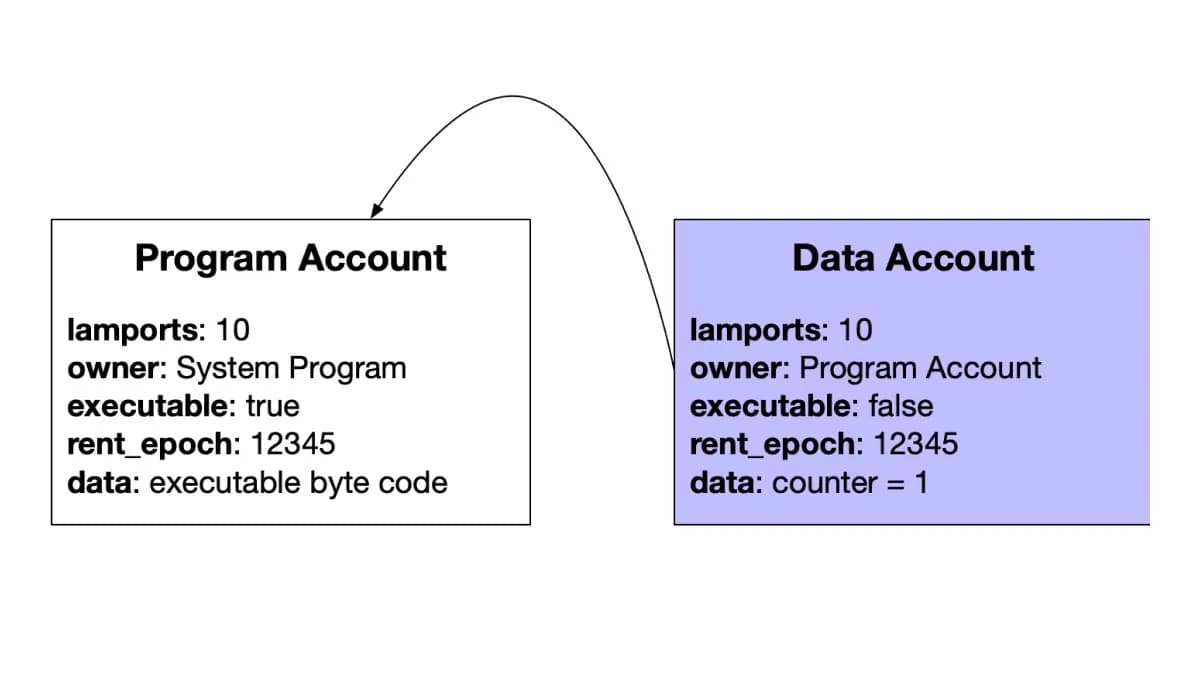
Building on Solana starts with an account model, a program, and a client that submits instructions. This guide uses a small counter to explain those pieces. It deliberately separates local testing from devnet deployment so the target cluster is explicit.
But getting started can be intimidating. Solana programs are written in Rust (a systems language most web developers haven't used), the runtime model is unlike any other blockchain, and the tooling landscape has evolved rapidly. This guide cuts through the noise and gives you a clear path from zero to deploying your first Solana program.
Solana Architecture: What Makes It Different
Before writing code, understand how Solana differs from Ethereum:
Accounts, not contracts: On Ethereum, smart contracts store their own data internally. On Solana, programs (the equivalent of smart contracts) are stateless — they don't store data. Instead, data lives in separate accounts. A program reads from and writes to accounts that are passed to it. This separation of code and state is the core mental model shift.
Account space and funding: Allocate enough data space and fund the required rent-exempt minimum. Programs can resize eligible accounts within runtime limits; storage is not permanently fixed at creation. Query the required minimum rather than hardcoding a SOL amount.
Parallel execution: Solana can execute transactions in parallel when their account access does not conflict; shared read-only accounts do not prevent parallel execution. This is why Solana is fast — but it means you must specify which accounts a transaction will read/write to before submitting it. On Ethereum, the EVM figures this out during execution.
Programs are upgradeable by default: Unlike Ethereum where contracts are immutable once deployed (unless using proxy patterns), Solana programs can be upgraded by the deployer unless explicitly marked as immutable.
Choosing Your Framework: Native Rust vs. Anchor
You have two main options for writing Solana programs:
Native Rust
Writing programs directly in Rust using the solana-program crate. This gives you full control but requires significantly more boilerplate code.
When to use native Rust:
- You need maximum performance optimization
- You're building infrastructure-level code (like a DEX or AMM)
- You already know Rust well and want granular control
- You're working on programs where every byte of account space matters
Anchor Framework
Anchor is a framework that abstracts away most Solana boilerplate. It's built on top of native Rust but provides macros, automatic account validation, serialization/deserialization, and a much better developer experience.
When to use Anchor:
- You're new to Solana development (strongly recommended)
- You want to ship faster
- You want built-in security checks (Anchor enforces the constraints you declare, but you still need to validate business logic, authorities, and CPI targets)
- You're building applications where developer velocity matters more than squeezing out every last compute unit
Anchor is a practical starting point for this tutorial. It reduces boilerplate without removing the need to understand the underlying runtime.
Setting Up Your Development Environment
Prerequisites
You need the following installed:
- Rust: Install via rustup
curl --proto '=https' --tlsv1.2 -sSf https://sh.rustup.rs | sh
- Solana CLI: The command-line tools for interacting with the Solana network
sh -c "$(curl -sSfL https://release.anza.xyz/stable/install)"
- Anchor CLI: If using Anchor (recommended)
cargo install --git https://github.com/otter-sec/anchor avm --force
avm install 0.31.1
avm use 0.31.1
This counter example keeps the Anchor 0.31.1 API generation, including @coral-xyz/anchor. Pin the CLI, Rust anchor-lang dependency, and TypeScript client to the same release. This is a reproducibility choice, not a claim that 0.31.1 is the latest version. For a new project on current Anchor, follow the official installation guide and its generated client template. Use WSL on Windows for the Rust/Solana toolchain.
-
Node.js: Use a maintained LTS version supported by your selected tooling.
-
Yarn or npm: For JavaScript/TypeScript package management
Configure Solana CLI
Set your CLI to use devnet (the test network):
solana config set --url devnet
Generate a new keypair for development:
solana-keygen new
Get free devnet SOL for testing:
solana airdrop 2
The requested airdrop amount is subject to faucet limits and availability. If it is refused, use the Solana Faucet and its current limits. Devnet SOL has no mainnet value.
Your First Anchor Program
Let's build a simple program that stores a counter on-chain and lets users increment it. This covers the core Solana concepts: accounts, instructions, and state management.
Initialize the Project
anchor init my_counter
cd my_counter
This creates a project structure:
my_counter/
├── programs/my_counter/src/lib.rs   # Your Solana program (Rust)
├── tests/my_counter.ts              # Tests (TypeScript)
├── Anchor.toml                       # Config
├── migrations/                       # Deploy scripts
└── app/                              # Frontend (optional)
Write the Program
Open programs/my_counter/src/lib.rs. Keep the valid declare_id! address generated by anchor init and replace the remaining program with the following example. The placeholder shown below must be replaced before compiling:
use anchor_lang::prelude::*;

declare_id!("YOUR_PROGRAM_ID_HERE");

#[program]
pub mod my_counter {
    use super::*;

    pub fn initialize(ctx: Context<Initialize>) -> Result<()> {
        let counter = &mut ctx.accounts.counter;
        counter.count = 0;
        counter.authority = ctx.accounts.authority.key();
        msg!("Counter initialized with count: 0");
        Ok(())
    }

    pub fn increment(ctx: Context<Increment>) -> Result<()> {
        let counter = &mut ctx.accounts.counter;
        counter.count = counter.count.checked_add(1).ok_or(CounterError::Overflow)?;
        msg!("Counter incremented to: {}", counter.count);
        Ok(())
    }
}

#[derive(Accounts)]
pub struct Initialize<'info> {
    #[account(
        init,
        payer = authority,
        space = 8 + Counter::INIT_SPACE
    )]
    pub counter: Account<'info, Counter>,
    #[account(mut)]
    pub authority: Signer<'info>,
    pub system_program: Program<'info, System>,
}

#[derive(Accounts)]
pub struct Increment<'info> {
    #[account(
        mut,
        has_one = authority
    )]
    pub counter: Account<'info, Counter>,
    pub authority: Signer<'info>,
}

#[account]
#[derive(InitSpace)]
pub struct Counter {
    pub count: u64,
    pub authority: Pubkey,
}

#[error_code]
pub enum CounterError {
    #[msg("Counter overflow")]
    Overflow,
}
What's happening here:
declare_id! sets your program's address (Anchor generates this)#[program] defines the instruction handlers — initialize creates the counter, increment adds 1#[derive(Accounts)] structs define what accounts each instruction expects and validates them automatically#[account] defines the data structure stored on-chainhas_one = authority ensures only the original creator can increment — Anchor checks this automaticallyspace = 8 + Counter::INIT_SPACE allocates storage: 8 bytes for Anchor's discriminator + the struct size
Build and Deploy
# Synchronize declare_id! and Anchor.toml with the generated keypair.
anchor keys sync
anchor build

# Explicitly select devnet; the Solana CLI setting alone does not
# override Anchor.toml's provider.cluster.
anchor deploy --provider.cluster devnet
Write a Test
Open tests/my_counter.ts:
import * as anchor from "@coral-xyz/anchor";
import { Program } from "@coral-xyz/anchor";
import { MyCounter } from "../target/types/my_counter";
import { expect } from "chai";

describe("my_counter", () => {
  const provider = anchor.AnchorProvider.env();
  anchor.setProvider(provider);
  const program = anchor.workspace.MyCounter as Program<MyCounter>;
  const counter = anchor.web3.Keypair.generate();

  it("Initializes the counter", async () => {
    await program.methods
      .initialize()
      .accountsStrict({
        counter: counter.publicKey,
        authority: provider.wallet.publicKey,
        systemProgram: anchor.web3.SystemProgram.programId,
      })
      .signers([counter])
      .rpc();

    const account = await program.account.counter.fetch(counter.publicKey);
    expect(account.count.toNumber()).to.equal(0);
  });

  it("Increments the counter", async () => {
    await program.methods
      .increment()
      .accountsStrict({
        counter: counter.publicKey,
        authority: provider.wallet.publicKey,
      })
      .rpc();

    const account = await program.account.counter.fetch(counter.publicKey);
    expect(account.count.toNumber()).to.equal(1);
  });
});
Run the tests:
anchor test --provider.cluster localnet
This test runs against a local validator. To test the already deployed devnet program, use anchor test --provider.cluster devnet --skip-deploy with a funded devnet wallet and the matching program ID. Add a negative test with a different authority: a successful increment alone does not prove that unauthorized callers are rejected.