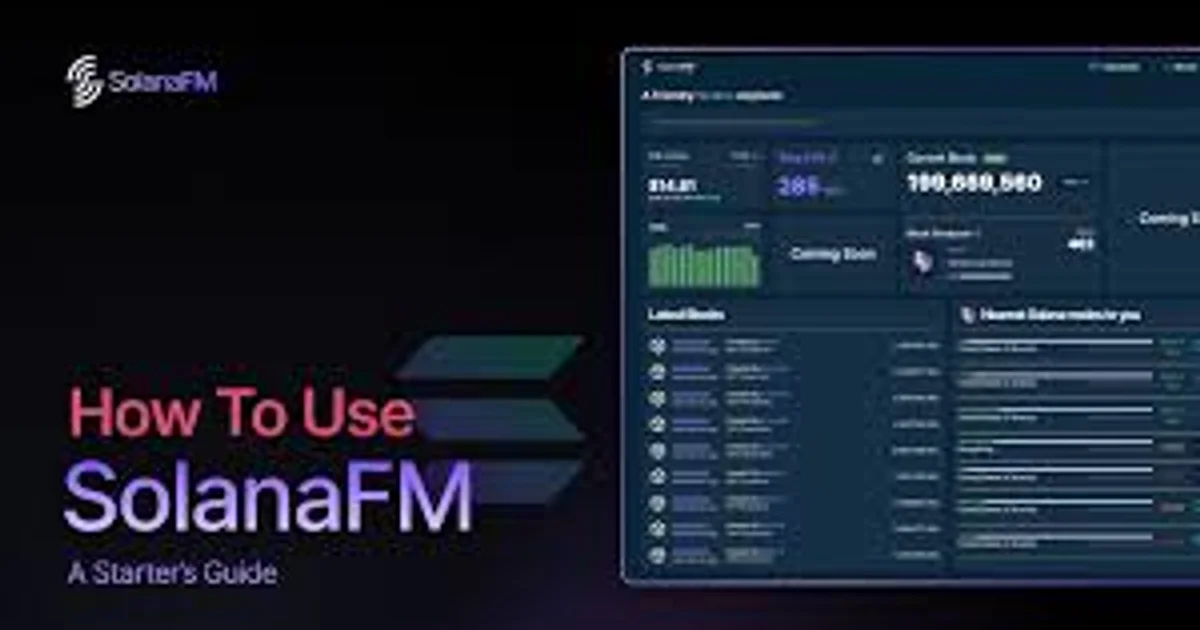
Block explorers are the most fundamental tool for anyone interacting with Solana. Whether you are verifying a transaction went through, checking a wallet's history, investigating a token's holders, or debugging a failed swap, you need a block explorer. Most Solana users default to Solscan, but Solana FM offers a different approach — one focused on making raw blockchain data actually readable by humans.
This guide covers how to use Solana FM effectively, what makes it different from other explorers, and when to use it versus alternatives like Solscan.
What Is Solana FM
Solana FM is a block explorer and analytics platform for the Solana blockchain. At its core, it does what every block explorer does — lets you look up transactions, wallets, tokens, and programs by searching addresses, signatures, or names. Where Solana FM distinguishes itself is in how it presents that information.
The platform's signature feature is its Translator — an instruction parser that converts raw Solana transaction data into human-readable descriptions. Instead of showing you a list of cryptic program instructions and account addresses, Solana FM tells you in plain language what a transaction actually did: "Swapped 2.5 SOL for 150,000 TOKEN on Raydium" rather than a wall of base58 addresses and instruction indices.
This makes Solana FM particularly valuable for:
- Beginners who do not yet know how to read raw transaction data.
- Researchers investigating wallet activity or token movements.
- Developers debugging program interactions.
- Anyone who wants to quickly understand what happened in a transaction without manually decoding instructions.
Searching on Solana FM
The search bar at the top of Solana FM accepts several types of input:
Paste a transaction signature (a long base58 string, usually starting with a number or letter, around 88 characters) to see the full details of that specific transaction. This is the most common search — you get a transaction hash from your wallet, a bot, or another tool, and you want to see exactly what happened.
Wallet Addresses
Paste any Solana wallet address to see:
- Current SOL balance.
- Token holdings (all SPL tokens in the wallet).
- Transaction history.
- Token account details.
Token Mint Addresses
Paste a token's mint address to see:
- Token metadata (name, symbol, image).
- Total supply and circulating supply.
- Holder distribution.
- Recent transfer activity.
- Associated program and authority information.
Program Addresses
Paste a program (smart contract) address to see:
- Program metadata and deployment info.
- Recent transactions involving the program.
- Instruction types the program supports.
Domain Names
Solana FM also supports searching by SNS (Solana Name Service) domains. Type a .sol domain name to find the associated wallet.
Reading Transaction Details
Transaction pages are where Solana FM's advantages become most apparent. Here is what you see when you open a transaction:
Overview Section
The top of the page shows:
- Status: Whether the transaction succeeded or failed. Failed transactions still cost the base fee.
- Block: Which Solana slot (block) the transaction was included in.
- Timestamp: When the transaction was processed.
- Fee: Total fee paid (base fee + priority fee).
- Signer(s): The wallet(s) that signed the transaction.
The Translator
This is Solana FM's flagship feature. Below the overview, the Translator section presents a human-readable summary of what the transaction did. For a typical DEX swap, it might say something like:
"Wallet [address] swapped 1.5 SOL for 500,000 [TOKEN] via Raydium AMM. Slippage: 0.3%. Route: SOL to TOKEN (direct)."
For more complex transactions — ones involving multiple programs, conditional logic, or nested instructions — the Translator breaks each step down sequentially. A leveraged trade on a Solana perp DEX, for example, might show: deposit collateral, open position, set stop loss, each as a separate described step.
The Translator supports parsing for all major Solana programs including Jupiter, Raydium, Orca, Meteora, Marinade, Tensor, Magic Eden, and many others. For programs it does not recognize, it falls back to showing raw instruction data.
Instruction Details
Below the Translator summary, you get the full technical breakdown:
- Program invocations: Which programs were called and in what order.
- Accounts: Every account involved in the transaction, with labels where known.
- Instruction data: The raw data passed to each program instruction.
- Inner instructions: Sub-instructions triggered by the main instructions (e.g., a Jupiter swap might trigger inner instructions on Raydium and the SPL Token program).
This level of detail is primarily useful for developers debugging failed transactions or researchers doing deep analysis. For most users, the Translator summary covers what you need.
Token Balance Changes
Solana FM shows a clear table of how token balances changed as a result of the transaction. For a swap, you see:
- SOL decreased by X amount (what you sold).
- TOKEN increased by Y amount (what you received).
- Small SOL decrease for fees.
This balance change view is one of the fastest ways to understand a transaction without reading the instructions at all.
When you look up a wallet on Solana FM, the wallet page provides several useful views:
Portfolio View
A summary of all tokens held by the wallet, with current values where price data is available. This gives you a quick snapshot of what the wallet is holding.
Transaction History
A chronological list of all transactions the wallet has been involved in. You can filter by:
- Transaction type: Transfers, swaps, program interactions, etc.
- Time period: Last 24 hours, 7 days, 30 days, or custom range.
- Program: Show only transactions involving a specific program (e.g., only Jupiter swaps).
Token Accounts
A technical view showing all SPL token accounts associated with the wallet, including empty accounts that can be closed to reclaim rent SOL. This is useful for wallet cleanup — each empty token account holds approximately 0.002 SOL in rent that you can reclaim by closing it.
Token Analytics
Solana FM's token pages provide data that goes beyond what most explorers show:
Holder Distribution
See how many wallets hold a token and how the supply is distributed. This is critical for evaluating tokens — if the top 10 holders control 80% of the supply, that is a significant concentration risk.
The holder list shows:
- Wallet address for each holder.
- Amount held and percentage of total supply.
- Whether the holder is a known entity (exchange, protocol, team wallet).
Transfer Activity
Recent transfers of the token, showing volume, frequency, and notable large movements. Unusual spikes in transfer activity can indicate upcoming volatility, distribution events, or coordinated selling.
Metadata
Token metadata from Metaplex or Token-2022, including:
- Name, symbol, and image URI.
- Update authority (who can change metadata).
- Mint authority (who can mint more tokens).
- Freeze authority (who can freeze token accounts).
Checking these authorities is a basic security step. If mint authority is still active, the token creator can inflate the supply at any time. If freeze authority is active, your tokens could be frozen. For trustworthy tokens, these authorities should be revoked or set to null.
Program Analytics
For developers and researchers, Solana FM provides program-level analytics:
- Usage statistics: How many transactions invoke the program, trending over time.
- Instruction breakdown: Which instruction types are called most frequently.
- Error rates: How often transactions involving this program fail, and which errors are most common.
- IDL integration: If a program has a published Interface Definition Language (IDL), Solana FM uses it to parse instruction data into named fields rather than raw bytes.
This is particularly useful when evaluating DeFi protocols or investigating new programs. High error rates or sudden drops in usage can signal problems.