title: "Phantom Wallet Guide: Setup, Swaps, Staking, and Hidden Features (2026)"
excerpt: "The complete guide to Phantom wallet in 2026. Learn how to set up, swap tokens, stake SOL, manage NFTs, and use Phantom's lesser-known features like burn tokens, priority fees, and multi-chain support."
date: "2026-02-22"
category: "Guides"
cover_image: "/images/blog/phantom-wallet-guide.jpg"
tags: ["Phantom", "wallet", "Solana wallet", "staking", "swaps", "NFTs", "security", "beginner guide"]
author: "MadeOnSol"
tools_mentioned: ["phantom", "solflare", "jupiter", "magic-eden"]
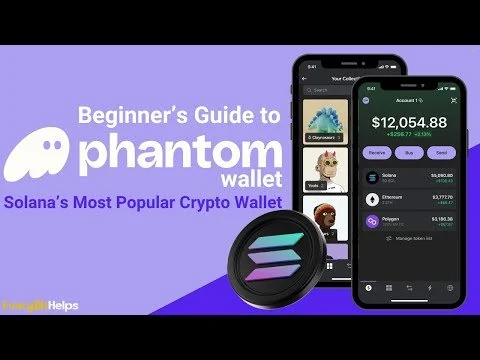
Phantom is the most popular wallet on Solana with over 15 million monthly active users. It's the default wallet for most Solana dApps, and for good reason — it's fast, polished, and packed with features that go well beyond just storing tokens.
But most people only scratch the surface. They install Phantom, buy some SOL, maybe swap a token or two, and never discover the features that power users rely on daily. This guide covers everything: from first install to the advanced features that make Phantom the wallet of choice for serious Solana users.
Getting Started
Installation
Phantom is available on every major platform:
- Browser Extension: Chrome, Firefox, Brave, Edge
- iOS: App Store
- Android: Google Play
For this guide, we'll primarily reference the browser extension, but the mobile app has nearly identical features.
Install the browser extension:
- Go to phantom.app — always use the official site, never install from third-party links
- Click Download and select your browser
- You'll be redirected to your browser's extension store
- Click Add to [Browser] and confirm
Creating a New Wallet
- After installation, click the Phantom icon in your browser toolbar
- Select Create a new wallet
- Set a strong password (this encrypts your wallet locally)
- Write down your 12-word recovery phrase on paper — not digitally
- Confirm the phrase by selecting words in order
- Your wallet is ready
Critical security note: Your recovery phrase is the master key to your wallet. Anyone with this phrase has full control of your funds. Never:
- Store it in a screenshot, notes app, or cloud storage
- Share it with anyone (Phantom will never ask for it)
- Enter it on any website
- Take a photo of it
The only time you should ever enter your recovery phrase is when restoring your wallet in the official Phantom app.
Importing an Existing Wallet
If you already have a Solana wallet from another provider (Solflare, Backpack, etc.):
- Open Phantom and select I already have a wallet
- Choose Import recovery phrase
- Enter your 12 or 24-word phrase
- Set a password
- Your existing wallet and all its contents will appear
You can also import a private key for a specific account without replacing your main wallet — useful for managing multiple wallets.
Core Features
Sending and Receiving SOL
To receive SOL:
- Click on SOL in your token list
- Click Receive
- Copy your wallet address or scan the QR code
- Share this address with the sender
To send SOL:
- Click on SOL → Send
- Paste the recipient's wallet address
- Enter the amount
- Review the transaction details
- Click Send and confirm
Transaction fees on Solana are typically 0.000005 SOL (fractions of a cent), so sending SOL is essentially free.
Swapping Tokens
Phantom has a built-in swap feature powered by Jupiter, Solana's leading DEX aggregator. You don't need to visit a separate DEX website.
How to swap:
- Click the swap icon (two arrows) at the bottom of Phantom
- Select the token you're swapping from (top field)
- Select the token you're swapping to (bottom field)
- Enter the amount
- Review the route, price impact, and fees
- Click Review Order → Swap
Swap tips:
- Phantom automatically finds the best route across multiple DEXs via Jupiter
- For large swaps, check the price impact — anything above 1% means you're moving the market
- Use Max to swap your entire balance (leaves enough SOL for fees)
- You can set a slippage tolerance in swap settings (default 1% is fine for most tokens)
Staking SOL
Staking SOL earns you roughly 7-8% APY by delegating to a validator. Your SOL stays in your wallet and earns rewards every epoch (~2 days).
How to stake in Phantom:
- Click on your SOL balance
- Click Start earning SOL
- Choose a validator from the list or search for a specific one
- Enter the amount to stake
- Confirm the transaction
Choosing a validator:
- Commission: The percentage the validator takes from your rewards (lower is better, but 0% validators may not be sustainable)
- Uptime: Look for 99%+ uptime — if the validator is offline, you don't earn rewards
- Stake concentration: Avoid validators that already hold a large percentage of total stake to help decentralization
- Phantom recommends validators and shows their performance metrics
Unstaking: Unstaking SOL has a cooldown period of one epoch (~2 days). After that, your SOL returns to your wallet. If you need instant liquidity, consider liquid staking (see below).
Managing NFTs
Phantom has built-in NFT support that rivals dedicated NFT wallets.
Viewing your NFTs:
- Click the grid icon (Collections) at the bottom of Phantom
- NFTs are organized by collection
- Click any NFT to see its details, attributes, and current floor price
Sending an NFT:
- Select the NFT
- Click Send
- Enter the recipient's address
- Confirm
Listing on Magic Eden:
Phantom integrates with Magic Eden for direct NFT listings. Click on an NFT → List on Magic Eden → set your price → confirm.
Burning spam NFTs:
Solana wallets often receive unsolicited NFT airdrops (usually scams). Phantom lets you safely remove them:
- Select the spam NFT
- Click the three-dot menu
- Select Burn Token
- Confirm — you'll reclaim the rent SOL that was used to create the token account

Advanced Features
Priority Fees
When the Solana network is congested, transactions with higher priority fees land faster. Phantom lets you adjust this.
How to set priority fees:
- Click the gear icon (Settings)
- Select Priority Fees
- Choose a preset:
- None: Lowest cost, may fail during congestion
- Normal: Balanced — works for most situations
- High: Faster landing during moderate congestion
- Turbo: Maximum speed, highest cost
For regular transfers and swaps, Normal is fine. Switch to High or Turbo when you need a transaction to land immediately — like buying a newly launched token or minting an NFT.
Multi-Chain Support
Phantom isn't just a Solana wallet. It supports:
- Solana: Full support (tokens, NFTs, DeFi, staking)
- Ethereum: ERC-20 tokens, NFTs, DeFi interactions
- Polygon: MATIC and tokens
- Bitcoin: BTC (send, receive, ordinals)
- Base: ETH L2 tokens and dApps
Switching networks:
Click the network icon at the top of Phantom to switch between chains. Each chain has its own address — your Solana address is different from your Ethereum address, but they're all managed from the same wallet.
Multiple Accounts
You can create multiple accounts within Phantom for different purposes (e.g., trading wallet, holding wallet, testing wallet).
Add a new account:
- Click your account name at the top
- Click Add / Connect Wallet
- Choose Create a new account
- Name it for easy identification
Each account has a unique address but is derived from the same recovery phrase. Switching between accounts is instant.
Connected Apps Management
Every time you connect Phantom to a dApp, it remembers the connection. Over time, this list grows. Good security practice is to regularly revoke connections you no longer use.
Manage connections:
- Click the gear icon → Connected Apps
- Review all connected dApps
- Click Revoke on any you no longer use
This doesn't move your funds — it just prevents the dApp from requesting transactions through your wallet.
Hardware Wallet Integration
Phantom supports Ledger hardware wallets for maximum security.
Connect a Ledger:
- Plug in your Ledger and open the Solana app
- In Phantom: click your account name → Add / Connect Wallet → Connect Hardware Wallet
- Select Ledger
- Choose which accounts to import
- Transactions now require physical confirmation on your Ledger
This gives you Phantom's interface with Ledger's hardware security. Your private keys never leave the Ledger device.
Token Auto-Discovery
Phantom automatically detects new tokens in your wallet. But sometimes you need to manually add a token that hasn't been detected:
- Scroll to the bottom of your token list
- Click Manage Token List
- Search for the token by name or paste the mint address
- Toggle it on
Transaction History
Click the clock icon to see your full transaction history. Each entry shows:
Security Best Practices
The Essentials
- Backup your recovery phrase on paper, stored in a secure physical location. Consider a metal backup for fire/water resistance.
- Never share your recovery phrase or private key with anyone, for any reason.
- Verify URLs before connecting your wallet. Bookmark the sites you use regularly (Raydium, Jupiter, Orca, etc.) and always use your bookmarks.
- Don't click links from DMs — on Discord, Telegram, or Twitter. Scammers impersonate official accounts.
- Enable biometric lock on mobile (Settings → Security → Biometric Lock).
Recognizing Scams
Fake airdrop NFTs: You receive an NFT with a URL in its name or description. The URL leads to a phishing site. Don't visit it — just burn the NFT.
Fake Phantom pop-ups: Malicious websites create fake Phantom connection pop-ups. Always verify the pop-up comes from your actual Phantom extension (check the extension icon in your toolbar).
Malicious approvals: Some dApps request unlimited token approvals. Phantom shows you exactly what you're approving — read it carefully. If a simple swap asks for permission to access "all tokens" or "unlimited amount," that's suspicious.
Impersonation: "Phantom support" will never DM you first, ask for your seed phrase, or direct you to a "recovery tool." Official support is only through help.phantom.app.
Transaction Simulation
Phantom simulates every transaction before you sign it, showing you exactly what will leave and enter your wallet. Pay attention to this preview:
- ✅ Expected: "You will send 1 SOL and receive 50 JUP"
- 🚨 Suspicious: "You will send 1 SOL and all NFTs and approve unlimited USDC"
If the simulation shows unexpected token movements, reject the transaction immediately.
Phantom vs Solflare vs Backpack
| Feature | Phantom | Solflare | Backpack |
|---|
| Multi-Chain | SOL, ETH, BTC, Polygon, Base | Solana only | SOL, ETH |
| Built-in Swaps | Yes (Jupiter) | Yes (Jupiter) | Yes |
| Staking | Yes | Yes (more options) | Yes |
| NFT Support | Excellent | Good | Excellent (xNFT) |
| Hardware Wallet | Ledger | Ledger, Keystone | Ledger |
| Mobile App | iOS + Android | iOS + Android | iOS + Android |
| Transaction Simulation | Yes | Yes | Yes |
| User Base | Largest | Second largest | Growing |
| Unique Feature | Polish + multi-chain | Validator selection | xNFT apps |
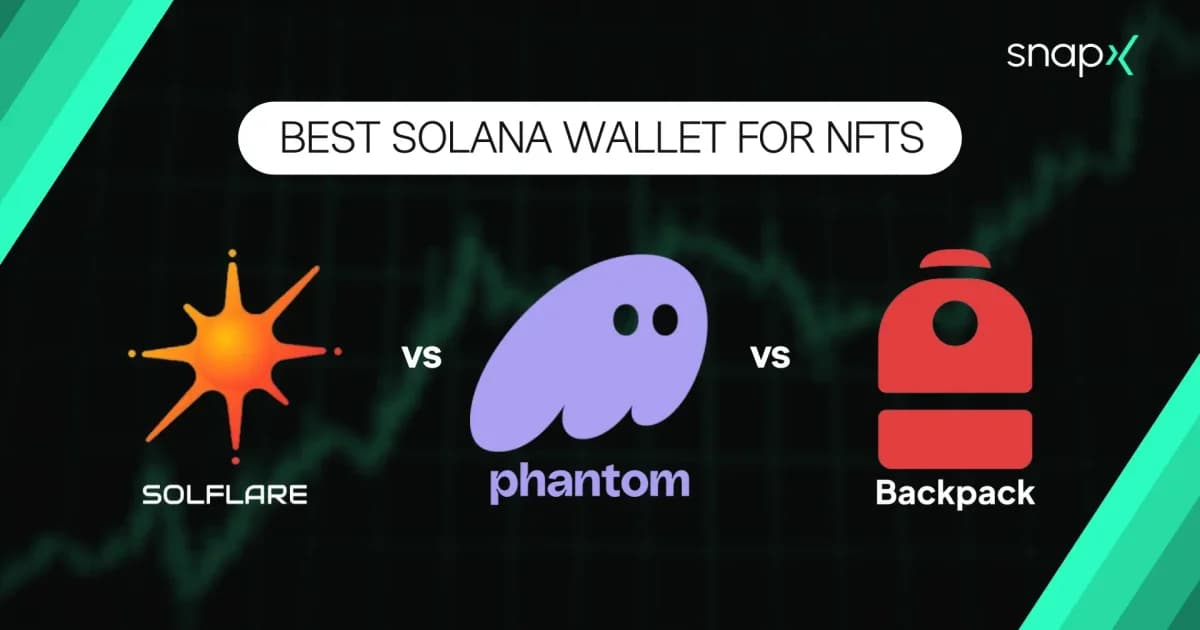
Phantom is the best all-around choice for most users. Solflare is worth considering if you want more detailed staking controls. Backpack is interesting for its xNFT (executable NFT) concept.
Tips and Tricks
Quick Access
Pin the Phantom extension to your browser toolbar for one-click access. Right-click the extension icon → Pin.
Dark Mode
Phantom supports dark and light themes. Settings → Display → choose your preference.
Address Book
Save frequently used addresses: Settings → Address Book → Add Contact. This prevents copy-paste errors when sending to the same addresses repeatedly.
Auto-Lock Timer
Set Phantom to lock automatically after a period of inactivity. Settings → Security → Auto-Lock Timer. Recommended: 15 minutes.
Activity Notifications
Enable push notifications on mobile to get alerted when your wallet receives tokens or NFTs. Settings → Notifications.
Check Any Wallet's Performance
Want to see how your own (or someone else's) wallet is performing? Use MadeOnSol's Wallet X-Ray to get a full PnL breakdown, win rate, trust score, and bot detection for any Solana wallet — completely free.
Getting Started Checklist
Phantom does a lot — but the basics are simple. Install it, secure your phrase, and start exploring the Solana ecosystem. Every dApp, DEX, and NFT marketplace on Solana works with Phantom out of the box.
Disclaimer: This guide is for educational purposes only. Always verify you're using official Phantom software from phantom.app. Wallet security is your responsibility. MadeOnSol is not affiliated with Phantom.