How to Use Solflare Wallet: Complete Setup and DeFi Guide (2026)
The complete guide to Solflare wallet in 2026. Learn how to set up Solflare, stake SOL, swap tokens via Jupiter, manage NFTs, connect a Ledger hardware wallet, and how it compares to Phantom.
MadeOnSol··Updated · 14 min read
Disclosure: This article contains affiliate links. If you sign up through them, MadeOnSol may earn a commission at no extra cost to you. This never affects our rankings, ratings, or reviews.
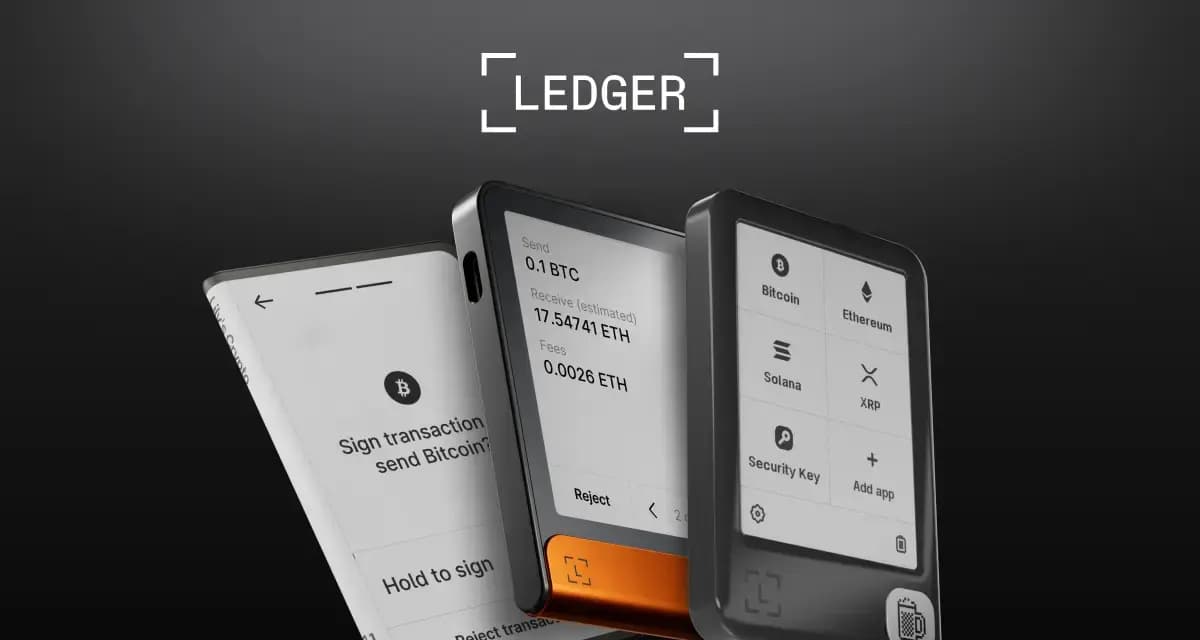
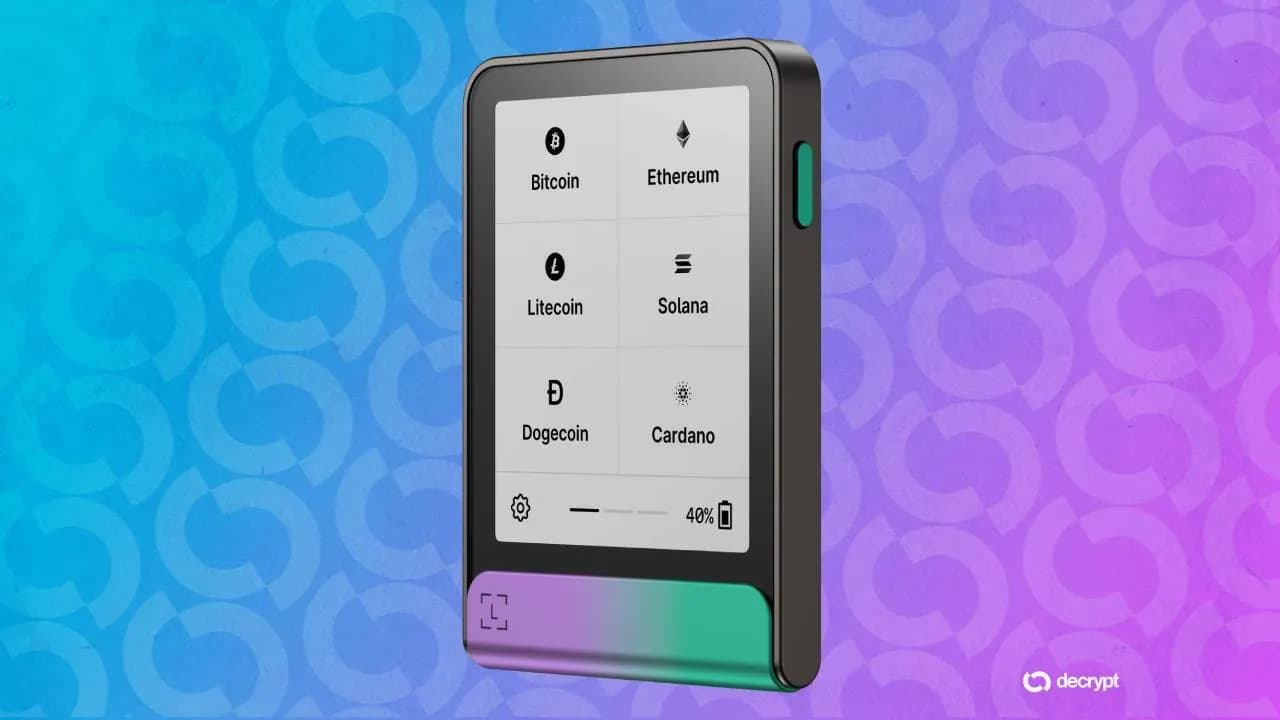
Connecting a Ledger Hardware Wallet
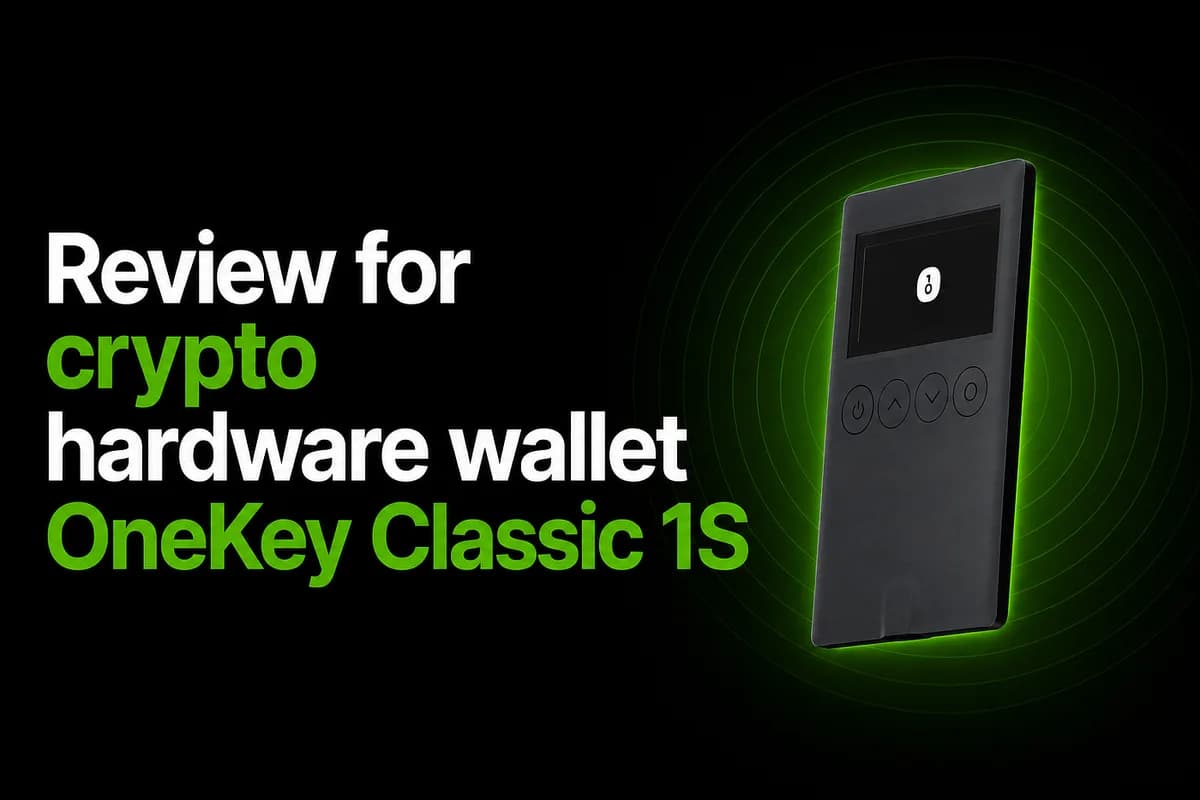
This is one of Solflare's strongest features. If you hold significant SOL or tokens, a hardware wallet adds a critical security layer — your private keys never touch the internet.
Setup
Install the Solana app on your Ledger device via Ledger Live
Open Solflare and select Connect Hardware Wallet (during setup) or go to Settings → Hardware Wallet
Plug in your Ledger and open the Solana app on it
Solflare will detect the device and display your Ledger-derived addresses
Select the address you want to use and click Connect
Using Ledger with Solflare
Once connected, your Ledger address appears in Solflare like any other account. The key difference: every transaction requires physical confirmation on the Ledger device. When you swap, stake, or send tokens, Solflare prepares the transaction, sends it to the Ledger for signing, and you approve it by pressing buttons on the physical device.
This means even if your computer is compromised, an attacker cannot move funds without physical access to your Ledger.
Troubleshooting Common Ledger Issues
"Device not found": Make sure the Solana app is open on the Ledger before connecting
Transaction fails: Enable "blind signing" in the Solana app settings on the Ledger (required for most DeFi interactions)
Extension not detecting Ledger: Try using the Solflare web app (app.solflare.com) instead — it sometimes handles USB connections more reliably than the extension
Solflare was the first wallet ever built for Solana, launching before the network even hit mainnet. While Phantom tends to grab the spotlight, Solflare has quietly evolved into one of the most capable wallets in the ecosystem — with features like native staking, built-in Jupiter swaps, hardware wallet support, and a transaction simulator that catches malicious approvals before they drain your funds.
If you're looking for a wallet that gives you more control without sacrificing usability, Solflare deserves serious consideration. This guide covers everything from initial setup to advanced DeFi usage.
Why Solflare?
Before diving into setup, here's why experienced Solana users often keep Solflare alongside — or instead of — Phantom:
Solana-native focus: While Phantom has expanded to Ethereum, Bitcoin, Base, and Polygon, Solflare remains dedicated to Solana. Every feature is optimized for this one chain.
Superior staking interface: Solflare's staking dashboard shows validator performance, commission rates, and estimated APY in a way that makes informed decisions easy.
Transaction simulation: Every transaction gets simulated before signing. You see exactly what tokens will leave and enter your wallet, catching phishing attempts and malicious contract interactions.
Hardware wallet support: Solflare's current security materials explicitly support Ledger and Keystone, and Solflare has also launched its own Shield hardware-security product.
No venture capital pressure: Solflare doesn't have the same pressure to monetize aggressively, which means fewer promoted features and cleaner UX.
Getting Started with Solflare
Installation Options
Solflare is available across three platforms:
Browser Extension: Chrome, Brave, Firefox, Edge
Mobile App: iOS (App Store) and Android (Google Play)
Web App: app.solflare.com (useful for hardware-wallet-only setups)
The browser extension is the most commonly used version and what most dApps expect. Install it from solflare.com — always use the official site.
Creating a New Wallet
Click the Solflare extension icon in your browser toolbar
Select Create a new wallet
Set a strong password — this encrypts your wallet data locally on your device
Solflare generates a 12-word recovery phrase. Write it down on paper. Never store it digitally.
Confirm the phrase by selecting words in the correct order
Your wallet is ready with a fresh SOL address
Security reminder: Your recovery phrase is the only way to recover your wallet if you lose access to your device. Anyone who has this phrase controls your funds. Store it offline, ideally in two separate physical locations.
Importing an Existing Wallet
If you already have a Solana wallet (from Phantom, another Solflare install, or any wallet that gave you a seed phrase):
Select Import wallet during setup
Enter your 12 or 24-word recovery phrase
Set a local password
Solflare will detect and display all your tokens and NFTs
You can run Solflare and Phantom simultaneously using the same seed phrase. Both wallets will show the same balances and can interact with the same dApps. This is useful for testing or when a dApp only supports one wallet.
Funding Your Wallet
Buying SOL Directly
Solflare integrates with on-ramp providers that let you buy SOL with a credit card or bank transfer directly inside the wallet:
Click the Buy button on the main screen
Choose a provider (MoonPay, Coinbase Pay, or others depending on your region)
Enter the amount, complete KYC if required, and confirm
SOL arrives in your wallet within minutes
Receiving SOL from Another Wallet or Exchange
Click Receive to display your wallet address and QR code
Copy the address and paste it as the destination on your exchange or sender wallet
Always send a small test transaction first, especially from centralized exchanges
Staking SOL with Solflare
Staking is where Solflare genuinely outshines most competitors. The staking interface gives you information that matters without overwhelming you.
How Solana Staking Works
When you stake SOL, you delegate it to a validator who processes transactions on the network. In return, you earn staking rewards — currently around 7-8% APY depending on the validator. Your SOL remains yours; you can unstake at any time (with a ~2-3 day cooldown period).
Staking Step by Step
Open Solflare and click Staking in the sidebar (extension) or bottom nav (mobile)
Click Stake SOL
Browse the validator list — Solflare shows:
APY: Estimated annual return after commission
Commission: The percentage the validator takes from rewards (typically 0-10%)
Total stake: How much SOL is delegated to this validator
Skip rate: How often the validator misses its slot (lower is better)
Uptime: Historical reliability
Select a validator (more on choosing wisely below)
Enter the amount of SOL to stake — leave at least 0.05 SOL unstaked for transaction fees
Confirm and sign the transaction
Choosing a Good Validator
Picking the cheapest commission isn't always the best strategy. Here's what to look for:
Commission under 10%: Most reputable validators charge 0-7%. Anything above 10% should raise questions.
Skip rate under 2%: A high skip rate means the validator is missing slots, which reduces your rewards.
Not in the top 10 by stake: Over-concentrating stake in a few validators hurts network decentralization. Picking a smaller but reliable validator strengthens Solana.
Active community presence: Validators who communicate openly (via Twitter or Discord) tend to maintain their infrastructure better.
Solflare makes this easy by highlighting recommended validators and flagging those with poor performance.
Unstaking
Go to Staking and find your active stake account
Click Unstake
Wait approximately 2-3 days (one full epoch) for the cooldown to complete
Once deactivated, click Withdraw to move the SOL back to your main balance
Swapping Tokens
Solflare integrates Jupiter directly into the wallet, giving you access to the best swap rates across every Solana DEX without leaving the app.
How to Swap
Click the Swap tab
Select the token you want to swap from (e.g., SOL)
Select the token you want to receive (e.g., USDC)
Enter the amount
Review the route — Jupiter automatically finds the best price across Raydium, Orca, Phoenix, and dozens of other DEXs
Adjust slippage if needed (default 0.5% works for most tokens; use 1-3% for volatile memecoins)
Click Swap and confirm the transaction
Swap Tips
Check the price impact: If swapping a large amount of a low-liquidity token, the price impact percentage tells you how much your trade will move the price. Anything above 1% means you're paying a premium.
Use the SOL/USDC pair as a benchmark: If your token doesn't have a direct pair, Jupiter routes through intermediate tokens. More hops = slightly higher fees.
Priority fees: During congested periods, increase the priority fee in Solflare's settings to ensure your swap confirms quickly. The default "Medium" setting works most of the time.
Managing NFTs
Solflare provides a clean NFT gallery that displays all your Solana NFTs with proper metadata and images.
Viewing Your Collection
Navigate to the Collectibles tab to see all NFTs in your wallet. Solflare supports:
Scam NFTs are a constant issue on Solana. Random tokens and NFTs appear in your wallet, often with phishing links in their descriptions. Solflare lets you burn these safely:
Select the spam NFT
Click Burn
Confirm — you'll recover a tiny amount of SOL from the closed token account (typically 0.002-0.005 SOL)
Never interact with suspicious NFTs by visiting their linked websites. Just burn them.
Recommendation: Use the browser extension as your primary wallet for desktop DeFi. Keep the mobile app for checking balances, quick sends, and approving WalletConnect sessions when a dApp requires mobile signing.
Choose Solflare if: You prioritize staking control, Ledger usage, and a Solana-focused experience. You don't need multi-chain support and prefer a wallet that isn't trying to be everything to everyone.
Choose Phantom if: You want the widest dApp compatibility, multi-chain support, and the most polished mobile experience. You value the ecosystem network effect of being on the most popular wallet.
Many serious users run both — Phantom for daily DeFi and Solflare for staking and hardware-wallet-secured holdings.
Security Features
Transaction Simulation
Every transaction you sign in Solflare is simulated first. You see a clear breakdown of:
Tokens leaving your wallet (with USD values)
Tokens entering your wallet
Approval changes
Warnings for suspicious contracts
This catches most phishing attacks. If a "free NFT claim" tries to drain your wallet, the simulation shows the outgoing transfer before you sign.
Auto-Lock
Solflare auto-locks after a configurable period of inactivity. Set this to 5-15 minutes if you step away from your computer frequently. This prevents someone with physical access to your device from accessing your wallet.
Trusted Apps
Solflare tracks which dApps you've connected to. Periodically review this list under Settings → Trusted Apps and revoke connections to sites you no longer use. Each active connection is a potential attack surface if that dApp's site gets compromised.
Advanced Tips
Custom RPC Endpoints
If you experience slow transactions or want to use a private RPC for better reliability:
Go to Settings → Network
Enter your custom RPC URL (from providers like Helius, QuickNode, or Triton)
Save — all transactions now route through your custom node
This is particularly useful for traders who need faster transaction inclusion during congested periods.
Multiple Accounts
Solflare supports multiple accounts under a single seed phrase. Click your account name at the top and select Add Account to create additional addresses. This is useful for separating:
A trading wallet (connected to dApps frequently)
A cold storage wallet (rarely interacts with anything)
A staking wallet (dedicated to validator delegation)
Priority Fees
During network congestion, set your priority fee level in Settings → Transaction Settings. Options typically range from Low to Turbo. Higher fees mean faster transaction inclusion — critical when sniping tokens or participating in time-sensitive DeFi activities.
Common Issues and Fixes
Tokens not showing up: Click the refresh button or add the token manually by pasting its mint address. Some new tokens take a moment to populate.
Transaction stuck as pending: This usually means the transaction was dropped by the network. Wait a few minutes — if it doesn't confirm, try again with a higher priority fee.
dApp doesn't detect Solflare: Some dApps only check for Phantom by default. Look for a "More wallets" or "Select wallet" button. Solflare is compatible with the Solana Wallet Standard, so most modern dApps support it.
Balance shows 0 after import: Make sure you imported the correct seed phrase. If you used a passphrase (25th word) with your original wallet, you need to enter that too.
Getting Started Today
Solflare is free to download and use. Head to solflare.com and install the browser extension or mobile app. If you're already using another Solana wallet, you can import your seed phrase and be up and running in under a minute.
For users who want the deepest staking experience and the most reliable Ledger integration on Solana, Solflare is the clear choice. For everything else, it's at minimum a strong complement to whatever wallet you're already using.
Solflare is a popular non-custodial Solana wallet available as a browser extension, mobile app, and web wallet. It supports holding SOL and SPL tokens, swapping, staking, and NFTs, connects to Solana dApps, and integrates with Ledger hardware wallets.
How do I set up a Solflare wallet?
Install the Solflare extension or app, create a new wallet, and securely write down the seed phrase it gives you — offline, never shared. Then fund it with SOL from an exchange or another wallet. To use existing funds, import your seed phrase instead of creating a new wallet.
How do I stake SOL with Solflare?
Open your SOL balance, choose Stake, pick a validator or a liquid-staking option, enter an amount, and confirm. Native staking shows a short warm-up before rewards begin and a cooldown when you unstake. You keep custody of your SOL throughout.
Can I use Solflare with a Ledger hardware wallet?
Yes — Solflare supports connecting a Ledger device, so you can manage Solana assets through Solflare's interface while your private keys stay offline on the Ledger and every transaction is confirmed on the device.
Is Solflare safe?
Solflare is non-custodial, so you control your keys and seed phrase — which also means you're responsible for protecting them. Never share your seed phrase, download only from official sources, verify transactions before signing, and use a Ledger with Solflare for larger balances.
Solflare remains intentionally Solana-focused, which is still a real differentiator versus increasingly multi-chain Phantom and Backpack. Its hardware story has expanded: current first-party material explicitly lists Ledger and Keystone, and Solflare now also offers Solflare Shield as a hardware-security product. Native staking remains a core Solflare workflow.